by Sherri Sylvester | Dec 6, 2016
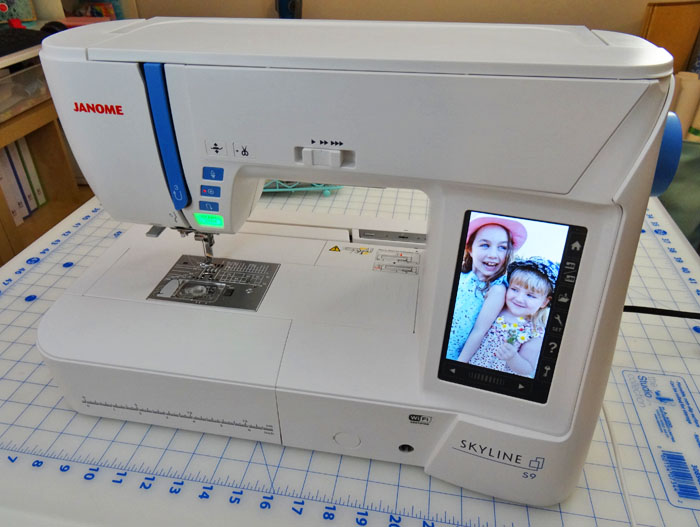
Dear Diary, Machine embroidery is amazing, and there is so much I still need to learn! I could probably go on for 8 or 9 weeks in a row – yikes! Anyhow, this is the last of this particular series, even though I think might have to write more soon since I have so many ideas.
This week has been one of amazement. (Like, out talking to myself out loud!) I can connect so many useful apps to the S9 sewing machine. And it was fun to relax upstairs while the machine worked in the basement – but more about that later…

This week I’ve been so playing with four apps that connect (via Wifi) to the Skyline S9 sewing machine Janome has loaned me. In fact, I was learning so much in the AcuDesign app that I only embroidered one thing. My oldest is very excited about her new towel, though – so it’s a win! I believe the exact quote was “Wow! Mom! That’s A-M-A-Z-I-N-G!” (Thank you Skyline S9 and Janome for that! And more about my goof-up on the ears in the tutorial.)
There are 4 apps I’ve currently used, 3 free and one purchased. Of all of them, I have used AcuEdit the least so far. Instead, I used the Embroidery Editor on my computer. Now that I am more comfortable using the wifi capability and sending things back and forth I think it will be my go-to app for editing any designs I don’t edit in AcuDesign – or when I need to add lettering to a design.
Follow the Sewing Diaries:Embroidery Edition Series:
Embroidery: Week 1 – introduction to the Skyline S9 and overview & basic tips about machine embroidery
Embroidery: Week 2 – Machine Embroidered Drawstring Backpack Tutorial!
General Impression: This app does everything! You can buy designs or load free designs, edit them and then export the file or send them directly to the sewing machine. It is built to work with many embroidery machines + the Edge wifi cutter – not just the Skyline S9, and not just Janome brand. It is possible to combine designs, add text (with a purchased module) and remove/add stitching from your designs. It is available for use with Apple products and is $69.99 CDN or $50 US in the App Store.
I’m impressed by:
- It is really powerful. The Smart Stitch engine adjusts the density of your stitches when resizing your design. So if your design is very small (say, 1″) and you want to make it much larger (say, 5″) it will increase the stitch density and pattern to fit. That way you don’t lose quality!
- My kids can use it – so it’s pretty straightforward and intuitive! Basically – tap to select, drag to move and use your thumb and forefinger to make a design larger or smaller. There are very specific buttons for moving around once stitch at a time as well if you need to be more accurate.
- It has an undo (and redo) button with multiple levels. So, not to worry, you can always go back.
- Resize your graphic to the hoop size automatically. Instead of guessing how large the design can be – then resizing and placing it yourself – just use one button!
- Real-Time Simulation. Showing my daughter the “movie” of how her embroidery design would stitch out bought me 10-15 minutes of free time to make dinner! Plus, it’s fun to see how it works, complete with realistic sound. (Though you can turn it off if you’d like!)
- It’s cute design! Love the cork board background and clothesline. It feels fun and crafty.
- It’s bigger and does so much more than I thought. I’ve only scratched the surface of this app’s capabilities! It is so much more powerful, I’m sure you will hear from me again on this topic! You can also find more detail and videos on the Janome website.
The only thing that surprised me was the number of graphics that were for sale – even though it is mentioned in the app details. And they are mixed in with the Free ones – so sending my kids in to choose a Free design to work with was tricky when they could see the purchasable ones as well. That said, the pricing is reasonable, and I can see buying them once I get better at this – especially when they are designed by my favorite fabric designers. You can find Bonnie Christine and Bari J among them. (And you might need a tuna sandwich to sustain you while you acciedentally browse through your morning!)
AcuDesign Mini Tutorials:
Choose a Design: Tap on the design you like to move it into Editing Mode.
Choose a Hoop: Many different machines are listed. Choose your machine and choose the hoop you wish to use. In my case, the Skyline S9 is not in the app as yet, so I chose a SQ14 hoop from the MC 15000 folder.
Change Size, Rotate & Skew: The photo below shows the handles/arrows you can grab to skew, rotate or size the design. It also shows what happens when you make the design too large. The light pink box indicates the largest size available within the hoop you have chosen.
Move the Design: Tap and Drag the design to move it around the hoop area.
Thread Colour: You can view all of the pre-set colours in the thread toolbox. Click the part of the design you wish to change on the clothesline and choose a new colour. Or, you can choose the colour itself from the list and then choose a new one. There are several pre-set lists of popular embroidery threads.
Change the Background: A handy way to view what your actual design will look like is to change the background fabric and colour. Choose from things like faux fur and knitted wool!
Help Interface: This part of the app was really useful. Tap on the help button and then tap on the section you need help with for a description of how to use it.
Export a Design: There are many types of files that can be exported or imported into this app. Choose which one you need and then Tap “Export”. I chose to save mine to my Dropbox folder.
An Hour in the Life of the Skyline S9
(ie. How to Embroider using AcuDesign, AcuSetter and AcuMonitor)
Prep: Choose your design & edit it in AcuDesign, use the features mentioned in the mini tutorials above. My oldest changed the colour of the wings I had chosen. (I thought the pink wings looked amazing, but apparently not!) Check out how much difference the new colours make, it’s a totally different design!
- Open the saved Design. My unicorn was saved under the Imported Files section. Check out how realistic the stitches look!
- Select the Hoop size. Choose your machine and choose the hoop you wish to use. In my case, the Skyline S9 is not in the app as yet, so I chose a SQ14 hoop from the MC 15000 folder.
- Size the Design by Hand or Automatically. Use your thumb and forefinger to make the design larger or smaller. You can also choose the hoop button to automatically resize the image to fit the hoop.
- Find the Correct Embroidery Thread. The list of thread colours is listed under the thread toolbox. You can change the thread options to match your brand of embroidery thread.
- Remove Small Stitches. There is an automatic button that will remove stitches smaller than .4 mm. This helps to prevent skipped stitches or a broken thread that needs re-threading.
- Upload the Design. When the Janome Skyline S9 is turned on you can directly connect to it and send the design straight to the machine. Otherwise, you can save it. (See Exporting a Design in the Mini Tutorials above.)
- Check it out! The design is on the machine and ready to stitch. And it was so painless to get it there. Love wifi!
- Fill the Bobbin. Since this design takes about an hour to stitch, I made sure to fill a new bobbin to start with. I also checked that my needle was still sharp and changed it to a brand new one.
- Hoop the fabric. In my case, a towel! I hooped the stabilizer, then used the magnetic clips to attach the towel on top. I also added a clear stabilizer topper. (More about the topper in week 1.)
- AcuSetter app. I wrote about this specifically in week 2 of these Diaries. This time, though it didn’t work so well because the little black lines on the hoop were covered up becuase I did not hoop the towel. This is a rare occurrence since most of the time fabrics would be in the hoop and lining it up would be easy. I ended up hacking it by matching and drawing the marks on my towel. Not great for accuracy – but for this project it wasn’t critical. (Also, I didn’t need to use the app, it would have been fine to use the design as I had it straight from AcuDesign.)
- Connect AcuMonitor. This real-time monitor shows you what the machine is doing so you can walk away! It has a nice sound that chimes when you are needed to change thread colours. It will also stop to let you know if the thread breaks, or something goes wrong.
- Stitch your design.
- Check with AcuMonitor. (Read, go relax!) Since the design takes about 1 hour to stitch, this promotes good exercise while I go up and down the stairs to change thread! I do love being able to do things while it is working. I did make sure to pin up the extra towel so it wouldn’t jam the machine, and double-check that everything else was working properly first.
- Embroidery in Progress.
- Finished Project! Unfortunately in the process of changing the bobbin, I bumped the top of the design (newbie mistake), so the ears don’t quite line up on the final pass. That’ll teach me not to mess with the placement! Plus, I may have needed more/different stabilizer. I’m chalking it up to the learning curve.
I hope you’ve enjoyed learning about machine embroidery! I know I have, and I’m excited to continue to play with it and get better at it. (Read: Christmas presents here I come!)
Don’t forget – there are
six more Sewing Diaries posts on Getting to Know your New Machine! Lots of tips and tricks for sewing different types of common fabrics and techniques on any machine.
How do you feel about Machine Embroidery? Love it, Hate it – find it confusing?
by Sherri Sylvester | Nov 29, 2016
Dear Diary, Week 2 of playing with the machine embroidery functions on the Janome Skyline S9 has been so fun! I’ve written a brand new beginner friendly tutorial for a simple lined Drawstring Backpack today. (Plus have one very happy girl who gets to use it!) This bag makes a quick gift and you don’t need an embroidery machine to sew one up.
This post is sponsored by Janome Canada.
Ever since Janome asked me to be one of their Artisans I’ve had the amazing chance to try out their Skyline series machines. I’d love so much to be able to let you try them too – but I’ll have to settle with telling you about them instead. Through today’s free Backpack tutorial I’ll be showing you the Skyline S9 – just released a few months ago! Here are a few exciting features I’ll be highlighting:
- Tapering – automatic settings to create unique designs with decorative stitching
- AcuSetter app – Amazing super-simple to use Apple app designed to allow for crazy-exact embroidery design placement. Check out the machine embroidery section of the tutorial for more details. (Trust me, I was grinning like crazy when I used it!)
The Sewing Diaries: Embroidery Edition started last week with an introduction to how machine embroidery works with videos and lots of photos.
On with the tutorial…
Why a Drawstring Backpack? My 4th grader needs a change of clothes for gym class and asked for a bag to put them in – the perfect project for some machine embroidery and embellishment! She chose the design and the colours. (Still enamoured with pink!) I would have loved to use another Anna Maria Horner butterfly design in blue, pink and teal…. but you don’t argue with the 9-year-old. I’ve learned that she loves things she designs. When I don’t ask and make the decisions, handmade items tend to sit around unused.
Drawstring Backpack Tutorial
This lined backpack is easy to make and wear. It lends itself to all kinds of fabrics and embellishments – machine embroidery, hand stitching or applique! Of course you could use that gorgeous fabric you’ve been saving and skip the extras too. Using only 1 yard of fabric in total, the finished size is about 17″ x 14″. The straps are fully adjustable to fit anyone from a child to an adult.
This tutorial will assume you are machine embroidering your backpack. You can also add your own embellishments, omiting the parts of the tutorial that you do not need.
As usual, please feel free to use my patterns/tutorials for your personal projects and gifts and for charitable fundraising events. Please do not sell anything sewn with this pattern. If you are interested in making this item for sale, please contact me and I will set up a license for it in the shop. Thank you!
Materials:
- 1/2 yard/metre outer fabric
- 1/2 yard/metre lining fabric (I used outdoor slicker fabric I had on hand)
- 160″ total (about 4 1/2 yards) 1/2″ ribbon, clothesline or double-fold bias tape
- Two 1″ grommets
- machine embroidery supplies such as stabilizer, appropriate needles, and thread
Prep and Cutting:
- If you will be washing this bag, prewash and press it before beginning to avoid shrinking the fabric later on.
- Cut the outer and lining. You will need one piece cut to 30″ wide by 18″ high.
- Prepare the straps by cutting your bias tape/ribbon or clothesline rope into two equal pieces 80″ long each.
- Mark the outer fabric as indicated below:
Buttonhole:
- Stitch a 3/4″ buttonhole in the area indicated on the diagram above. This will be where the straps feed through the casing.
Decorative Stitching (with the tapering feature!):
My girl loves frills and so I decided to add some stitching near the top to simulate frills and lace. Just to make it prettier!
- Choose your stitches. I wanted to play with the tapering feature on the S9. You can choose from any of the purple marked stitches on the machine and it will automatically taper the stitching for you using several angles. This would be great for the ends of collars or a tapered space like the angle on a sash.
- Mark a line on the bag outer that is parallel to the top of the bag – you will use this to keep your stitching straight. Add a line of stabilizer behind your stitching line. This will not show, so you can use any type you’d like.
- Set up your stitches. I chose an heirloom stitch with a 30 degree angle on each end to make the stitching look lacy and “ruffled”.
- Begin stitching and the S9 will automatically taper the beginning of the stitch. When you wish to start the ending taper, press the auto-lock button.
- The machine will memorize the stitched length and ask you if you’d like to repeat it. I used this repeat function to stitch to the other side of the bag.
- I added a few other stitches. It was really handy to attach and use the guide bar to keep everything straight.
- Here are the finished stitches, along with a few practice ones I made.
Machine Embroidery (using the AcuSetter app):
- Choose and set up the design you would like on the machine.
- Mark the center of your design on the fabric and hoop it. I did not center the hoop on purpose to show you the AcuSetter app. This app is free for Apple users – and Janome loaned me an iPad mini so I could use it. It’s absolutely amazing!
- “Recieve” the design from the machine – it will show up right on your screen!
- Take a photo of the hooped fabric within the app. Match up the small black lines using the magnifying circle in the center.
- The design from your sewing machine shows up on the photograph for reference. You can move things around and resize it if you want! I tilted the heart and lined it up the center markings I made earlier.
- Send the design back to the machine. It is automatically precicly placed exactly where you want it!
- Run the machine to embroider your design. This heart took about 19 minutes + threading time and has 7 different colours!
- Adding a Monogram exactly where you want is easy with the same steps. Program the monogram, hoop the fabric, receive the design, line it up and send the design back to the machine. Now, embroider it in the exact place you put it!
Sew the Backpack:
- Change the machine from Embroidery mode to Sewing mode. Press the toggle button on the LCD screen and close the embroidery arm.
- Match the top edge of the outer and lining with right sides together. Pin and stitch with a 1/4″ seam. Finish the raw edge if desired with serging, zig-zag stitch or pinking shears.
- Open flat and press the seam allowance towards the lining. I used low heat because the slicker fabric melts easily.
- Fold the lining and outer right sides together matching the sides and the seam you just sewed. The outer and lining sides will match up with themselves. Stitch with a 1/2″ seam and finish the raw edges if desired.
- Fold the lining into the outer with wrong sides together, creating a tube. Press and pin along the finished seamline and match the bottom raw edges.
- Edgestitch along the pinned edge about 1/8″ away from the fold. Also stitch along the pre-marked line (aprox. 1 1/4″ down from the top edge) to create the casing.
- The buttonholes should be centered from top to bottom within the casing.
- Turn the bag wrong side out and align all 4 raw edges. Flatten and pin the bag bottom with the back seam centered on the back of the bag. Stitch through all 4 layers with a 1/2″ seam. Trim to 1/4″ and finish the raw edges if desired.
- Turn the bag right side out again. Push out the bottom edge and the corners and press well. Mark 2″ out from each corner and connect the lines to create a triangle in each corner. Also mark a stitching line 1/2″ up from the bottom fold. Stitch on the marked lines to enclose the raw edge and create a sturdy corner for the grommets.
- Attach the grommets in the center of each stitched triangle as per the manufacturer’s directions.
- Insert one strap through the right buttonhole, around the entire casing and out the same buttonhole. Match the right side strap ends and bring them through the grommet from the back. Knot to hold in place.
- Insert the other strap through the left buttonhole, around the entire casing and out the same buttonhole. Match the left side strap ends and bring them through the grommet from the back. Knot to hold in place.
- Fray-check or finish strap ends if desired. They can be re-knotted at any length appropriate to the wearer. Remove all markings and press well.
Enjoy your new Drawstring Backpack!
——————————————————————-
I’d love to see your project! You can share your project on Facebook, Twitter or Instagram (links below) using the hashtags #alongforthreadride and/or #threadridinghood. Thank you!
by Sherri Sylvester | Nov 21, 2016
I am in the middle of a sewing journey. One that begins with me not knowing anything about machine embroidery – and ends with me (hopefully) knowing better what I’m doing and sharing tips and tricks with you along the way.
As with all good journey’s this one includes a diary – so the explorers that went before can share their experiences after they have moved on to the next place. Overly dramatic, I know, but I think it works! (hee hee)
This post is sponsored by Janome Canada.
I’m treating this 3-part series as a diary of the good, the bad and the seam ripped. I’m sharing all my mistakes, things I should have done, tips for next time and the successes too! Along the way, we will learn a lot about machine embroidery together. You can also check out the Sewing Diaries – Get to Know Your Machine posts if you want more sewing machine information.
As a very honest aside… I know many of you do not have an embroidery machine. I understand that and will highlight sewing tips as well. (Including a brand new sewing tutorial next week.) If you are curious about how machine embroidery works, there are behind the scenes photos and video links!
Hello, My name is Skyline S9… Janome Skyline S9.
Ok – it’s not quite James Bond, but it comes pretty close! This combination sewing/embroidery machine has everything a maker could ask for and lots more I’ve forgotten to mention or don’t know about yet! I featured the S9 a bit in the Maker Style posts this October, but I should give you a proper introduction.
Basic Machine Embroidery Supplies
To start embroidering you will need some basic supplies.
- Embroidery Thread & Bobbin Thread
- Needles – Blue and/or Red tipped Janome needles are recommended for the Skyline S9 machine
- Stabilizers – one of about a zillion types!
More about Stabilizers…
This extra layer (or two) is used to stabilize the fabric you are embroidering. They give it more rigidity and strength, and allow the weave to hold the threads better.
I have so far liked the dissolving stabilizers since they are easy to remove and I have been making items where the back will show. This article from Threads magazine has lots of really useful information about how to choose the correct stabilizer.
Rule of Thumb: If you have a loose weave fabric or a more dense embroidery design you will need a stronger stabilizer (or more layers of a thinner one) OR If you have a dense weave you can get away with less/thinner stabilizer.
Where to Start + Some Beginner Tips
The best advice I got was to practice, practice, practice! Linda Pidzameky (from Janome) told me to start embroidering all of my dishtowels – and it’s the best advice I got. The easiest way to learn how to machine embroider is by trying it and making mistakes and trying it again.
I used an Anna Maria Horner design that looks like cross-stitch and one layer of Janome Aquasolv as the stabilizer. Since the towel fit in the embroidery hoop, I cheated and adhered it to the towel with my quilt basting spray – which seemed to work just fine!
For comparison, I also decided to embroider another dishtowel with a different design and a different stabilizer. This time I used the Unique Rinse Away I picked up at my local fabric store.
If you are curious what machine embroidery looks like, here’s a quick video I put on Instagram!
What I learned:
- The dense stitching on the “S” monogram took about 34 minutes to embroider, despite being the same size as the AMH Cross-Stitched design. The AMH embroidering took about 11 minutes.
- Both stabilizers worked well and held up great.
- It would have been good to use a top layer of stabilizer. Called a “topper”. It’s clear and disappears after the design is washed. The topper helps to hold the stitches out of the fabric weave – which is showing through the monogram a bit much for my liking. I used a topper on this towel for comparison. You can see that the stitching isn’t affected by the plush towel fibres.
By the way – the Janome Aquasolv won by a long shot! (See the photos below) My Unique Rinse Away barely disappeared. I’m hoping it will go away with more washes.
Learn from My Mistakes
My mom has a saying we use whenever one of us does something “less than smart” – we call it “dumb things I have did”. I feel like that is a good title for this section!
- Start with the Basics:Umm… what size is that design again?
- I actually managed to start embroidering the “S” monogram onto my dishtowel before I realized it was about 4 1/2″ tall! Somehow I thought it was much smaller. Oops! *face palm*
- Think it Through:Smarter stabilizing!
- I used a tear-away stabilizer for part of my Design Diva Apron embroidery. Turns out it’s a lot of work removing all those tiny pieces! Might have been simpler to use a wash-away version.
- Turn it Over:What will it look like when they see the back?
- Colour the stabilizer and bobbin to the colour of the back of your fabric. Seems like a no-brainer, but I didn’t figure this out in time and the back of my Design Diva apron has white bobbin thread and white stabilizer on navy. Argh. This also would have been a good place for a better dissolving stabilizer!
- Baste for Success:Right, until you try to remove them!
- Trust me, I know from experience! It’s much simpler to remove the basting stitches from the back than the front. The automatic tension is much looser on the back so they come out way more easily.
- Desk Depth:Check the size of your furniture!
- I just built a new sewing space, and it happens to have an 18″ deep area for the machine. Which is perfect, until your embroidery arm needs a 24″+ depth to work. Thankfully I can run the machine from my cutting table. No harm done.
Funn-est Thing of the Week
Random fun fact about the S9? LOVE that you can change the screensaver to whatever photos you want. Which means, wait for it… the sewing machine HAS a screensaver! And I changed the photos over wifi!
Wanna know what photos I used? You can find a video of it on Instagram!
Never in my life thought I’d be using a sewing machine with a screensaver and a wireless connection to anything. My tech-savy husband also thinks that’s awesome and gives it a thumbs up! (Plus he’s plotting planning all the things I can now embroider on his friends’ Christmas gift bags!)
by Sherri Sylvester | Nov 15, 2016
Hi there! I’ve been taking in the late-fall weather with a few books and detoxing my house from a month of neglect.
The lead-up to Creativ Festival was full of preparations, and while the event itself was fun, I needed to intentionally take time a bit slower afterward! There has been an overabundance of Creativ Festival talk here in the last month. And I promise we’ll get back to our more regular programming now.
My kids and I with a Janome #makerselfie after a long day!
I have scheduled post ideas all the way up to the end of January. (Eeep – trying to be organized!) They include lots of fun stuff that’s been sewn and waiting, new tutorials and Christmas things!
It’s hard to sum up my experience at Creativ Festival this year. Instead of my usual booth perusal and fabric stashing, I concentrated on my workshop, speaking engagements and emceeing Project Creativ Catwalk. Quite a step away from my usual behind-the-computer life – and I’m excited to be slowly learning how to get better at speaking. Even when they put me up on a huge stage riser!
Be Brave and Sew – Day 1. My daughter’s Easter dress is one of my most favorite makes.
Be Brave and Sew – Day 3. My wheeled Bluefig bag was perfect to transport everything for each show.
Yikes that stage was high!
I want to give a huge shout-out to the fabric shops that provided giveaways and discounts for everyone that came out to the Be Brave and Sew Talks. Sew Sister’s Quilt Shop for their super-cute Tula Pink Bundle. Fabric Please! for the Farm Fun Panels, Charm Packs and discount cards. And Meerkat Shweshwe for their great discount cards as well.
Fabric Please! a Canadian Online Fabric Shop. Check out the Moda Stacy Tsu Farm Fun Panel animals on the top shelf.
Sew Sisters Quilt Shop. LOVE that they covered their tables in quilty goodness! Check out their Tula Pink fabrics.
Meerkat Shweshwe‘s unique fabrics are imported from South Africa. Check out more details along with this free pinafore tutorial!
I’d be hugely remiss not to mention Janome – so much thanks to them for all of their support! They sponsored all of my events and introduced me to so many amazing people over the 3-day event. (Plus I love their machines!)
My Design Diva Apron in the Janome Maker Studio. Get the free pattern!
The Maker Studio had so many projects from the new M Series Look Book – and most are free tutorials/patterns!
Love this giant tomato pin cushion at the Janome Booth. It was about 10″ across!
Last, but not least… I am so thankful and grateful to my husband for his amazing support of this blog and everything I do. He came out every day to out postcards and giveaways, help with set-up and take-down, shuttle kids and props around and was kind when my tiredness and nervousness took over. I do not know what I would do without him. (Ok – gotta quit – getting teary eyed over here.)
I’m still taking it in and am sure all will come out in some sort of emotional post when it’s ready. For now, here are some more photo highlights of everything that happened.
Mona, one of my workshop attendees with her daughter’s new Fat Quarter Skirt!
Gorgeous quilts in the Lens Mills display – I really should have gotten some close ups of these!
Tamara Kate’s “Whatever the Weather” quilt is a free Sew Along on the Janome Life blog.
Rachelle from That’s Sew Venice thought to take a selfie of us. I never remember!
I love meeting blog readers! I happened to run into the lovely Irene, from Irene’s Studio on Day 2. I also found Melwyk from Magpie Makery and my friend Laura from Seams Sew Laura came to visit too!
Cynthia Frenette’s amazing Making Merry Quilt was on display at the Janome Booth. Get the free Mod Pods Matching Pillow tutorial!
Loveliness from Tamara Kate‘s booth where she was selling her fabrics. I had so many photos tried to only pick these three. It was so pretty!
by Sherri Sylvester | Oct 25, 2016
I am preparing once again for the event this past spring that had me crazy worried. I spoke at Creativ Festival for the first time in April, and, as it turns out – it’s terrifying the first time, easier the second time and much, much easier this time! #practicemakesbetter
But – it wouldn’t be fun without something new, right?! So I’m teaching a workshop and emceeing a super-fun event on Saturday. Eeep! Though it may sound otherwise, I am really excited for the new opportunities, and (as always), interacting with other creative people is my favorite.
If you are in the Toronto area, I’d love to see you there. The show starts bright-and-early on October 27 (Thursday morning) and runs until Saturday, October 29th at the International Centre. 3 days of exhibits, workshops, demonstrations and booths full of amazing crafting supplies. #petallthefabric!
Join me for my Fat Quarter Skirt Workshop, 9-12 Thursday morning. I’m so excited to teach this beginner-friendly workshop – and maybe addict more of you to the goodness of sewing! 😉 You’ll leave the workshop with a fully finished skirt for your favorite little girl, and a pattern for sizes 2-6 so you can make more of them! Register on the Creativ Festival website – click the “Feature Classes: Thursday…” button and find “Fat Quarter Skirt”.
I’ll also be presenting a Janome-sponsored talk called “Be Brave and Sew II” on the Fashion Runway Thurs and Fri at 2:30 and Saturday at 1:30. There will be sponsor giveaways and exclusive discounts – plus, lots of information to help you conquer your sewing bucket list!
I hope to see you there!
by Sherri Sylvester | Oct 20, 2016
Just back from a trip to the thrift store? Got 7 shirts in your closet waiting to be upcycled? Scraps from previous re-purposed items still to be dealt with? You’re in luck! Today is all about our last Maker Style – the Eco Expert! Projects include your personal Eco Expert apron, new repurposing projects to try, clever ways to use old clothing and how to make them unique.
This post is sponsored by Janome Canada.
How do you know if you are an Eco Expert?
Take my super fun short quiz to find your personal Maker Style! Don’t miss out on lots more great sewing inspiration, grab a cup of tea and sit down with the new M Series look book from Janome. I really enjoyed looking through it, the project tips and tricks are great and there are free patterns too!
Eco Expert Utility Apron (+ How I Shopped for Thrifted Fabric)
The Eco Expert apron is based on a tutorial from Sugar Bee Crafts. Their Utility Apron is easy to sew and requires minimal yardage – perfect for re-purposing your old or thrifted clothing!
I went thrift store shopping and found 3 skirts. All made from heavier fabrics, since I wanted this apron to be durable. The skirts I chose had various things I wanted to incorporate: denim – because of its durability, skirt tab – a fun detail to use in a new way, and great top-stitched seams – to add detail to the finished apron.
Always check to make sure they don’t have any stains or tears (though you could use that to your advantage too!). To save myself a bit of work I took the tutorial measurements and a measuring tape with me so I could be sure the skirts had enough fabric to fit.
Creative Up-Cycling (Anything is fair game!)
Here are a few ways you can use ready-to-wear clothing details to make your up-cycled project better!
|
Upside Down Hems: The tops of all of these apron pockets are the hems of each skirt. It was really simple to turn the skirt upside-down and cut the pieces out.The pink skirt had a bit of a curve to the hem and I was able to use that as a design feature! |
|
Everything Has a Purpose: The pink skirt had a cute faux-button tab on the waistband. I was able to remove it and re-sew it to the skirt side to use as a scissor holder! |
|
You Haven’t Seam it All: #seewhatIdidthere? Sorry for the joke – but the pre-sewn seams can add a fun detail to your up-cycling! I off-set all three skirt seams to add interest to the apron. Bonus: You won’t have to sew all that extra topstitching! |
|
Stitch it Again: On the topic of seaming things. I had to re-stitch the hem on the pink apron. It had a pleat in the back and to remove it, the hem had to be un-stitched.To make things more fun, I used my favorite “X” stitch that comes on the Skyline and M Series Janome sewing machines. Just grab the F or F2 Satin Stitch foot and stitch right across where the old hem was topstitched. |
|
Re-Use the Pockets: This is a common one. Take the pockets off your jeans and use them in your new project. Again, all that work cutting and topstitching is already done for you! A great example of this is to use one on the lining of my new favorite purse pattern – the Chobe. (Photo via Elle Puls, via Stitchydoo) |
|
Use Plain Space: Ok – this is stretching the use of “ready-to-wear details” a bit, but lettering is so fun! If you use some blank space to add a fun detail like the I did with the word “MAKER” here. Again, this alphabet is available on the Janome Skyline S7 I used to stitch this apron, and the new M Series machines.BONUS: If you have some pre-loved leather around, you can make a simple Leather Label too! |
You can find more ways to embellish your sewing in the Sewing Diaries: 9 Ways to Embellish and Label Your Projects.
Re-Purposing Projects to Try
I’ve found some great up-cycling sewing projects you can try. The quilts are the best since you can destash and a lot of fabric all at once! If you like these and want more, you can follow my UpCycle or Alter Pinterest board. (Made with Eco Experts in mind!)
Hope you had fun visiting today. What is your favorite Upcycling Project? Be sure to follow #alongforthreadride!